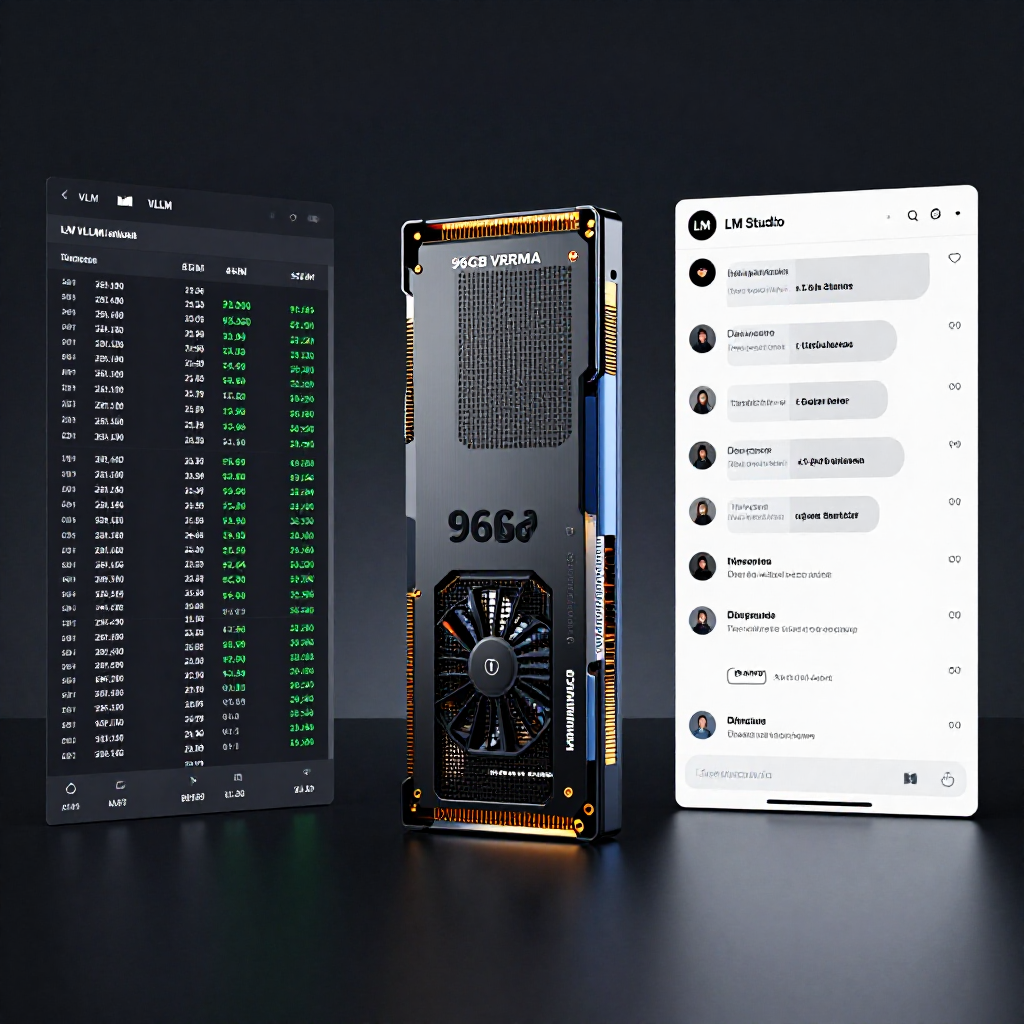
The 96GB Sweet Spot
When you’re running local LLMs, VRAM is the bottleneck that kills everything. You can have the fastest CPU and the biggest hard drive, but if you can’t fit the model into memory, you’re bottlenecked. That’s why I landed on the RTX Pro 6000. With 96GB of VRAM, it’s the ultimate single-GPU workstation for local AI. It lets me run models like Qwen 27B in int4 (or even bfloat16) without swapping to system RAM, keeping inference speeds blistering fast.
But with that kind of power comes a choice: how do you interact with it? Do you need a chat interface, or do you need a high-throughput API? The answer for me is both. I run LM Studio for discovery and vLLM for production.
LM Studio: The Sandbox
LM Studio is the best tool I’ve found for model exploration. If I hear about a new open-source model or a new quantization format, I pull it into LM Studio first.
- Instant Feedback: I can download a model, adjust the context window, and start chatting in seconds. It’s my “play” environment.
- UI and Management: The model library, download management, and integrated chat UI make it incredibly easy to compare models side-by-side without writing a single line of Python.
- GGUF Testing: LM Studio is king for GGUF files. It’s perfect for testing how a specific quant handles a specific prompt before I commit to running it in my agent stack.
I use LM Studio to answer the question: “Is this model actually good at what I need?” It’s interactive, forgiving, and fast.
vLLM: The Workhorse
Once I’ve vetted a model in LM Studio, I move it to vLLM. This is the engine that powers my actual work.
vLLM is not a chat interface. It’s a high-throughput serving engine optimized for production. It uses PagedAttention to manage memory more efficiently than almost any other framework, which squeezes more throughput out of that 96GB of VRAM.
Here’s why vLLM is the backbone of my setup:
- API Compatibility: vLLM serves an OpenAI-compatible API. This means Hermes Agent, my Python scripts, and any other tool can talk to it using standard libraries. No custom drivers or weird integrations.
- Continuous Batching: Unlike older engines that process requests in rigid batches, vLLM can schedule requests as they arrive. This makes it incredibly efficient when I’m running background agents or handling multiple tool calls simultaneously.
- Production Stability: It runs headless in Docker, 24/7, without a GUI getting in the way.
The Workflow: How They Work Together
Here’s how I actually use this dual-setup on the workstation:
- Discovery: I open LM Studio, search for a new version of Qwen or Llama, and pull it down. I spend 10 minutes chatting with it, testing reasoning, coding, and formatting.
- Verification: If it performs well, I note the repository or the GGUF file. I want to make sure the model isn’t just a marketing exercise.
- Deployment: I update my vLLM container configuration to point to the new model (or the equivalent HuggingFace format). Once it’s loaded into the 96GB VRAM, it becomes the brain for my Hermes Agent.
- Automation: Now my agent can use that model to browse the web via Camofox, check my stock portfolio, or draft blog posts. I’m no longer just chatting; the model is doing work.
Why Not Cloud?
You can get these models on API services like Together AI or Groq, and they are fast. But the local setup offers privacy and zero marginal cost. When I’m researching sensitive client info, building tools, or just poking around at 2 AM, I don’t want my data leaving my network or waiting on a rate limit.
Running this locally on the RTX Pro 6000 means the models are mine, the data is mine, and the speed is limited only by my hardware. It’s the ultimate “build it yourself” setup.